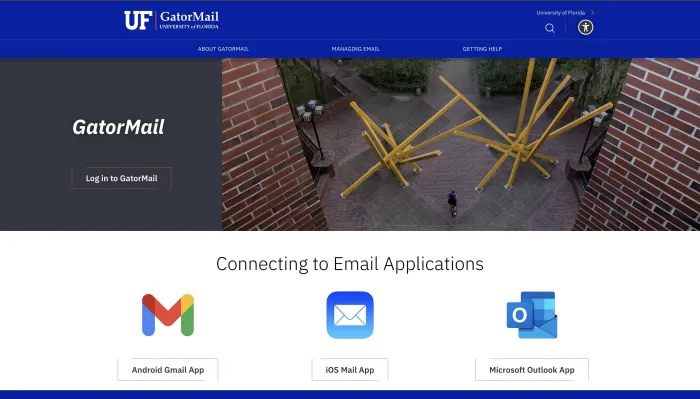
Quick Answer: What Is Gator Mail?
Gator Mail, or GatorMail, is the University of Florida’s official email service. It gives eligible UF users access to email, calendar features, and university address book tools. Students, faculty, staff, and other eligible users normally access it with their GatorLink username and password.
For most UF students, the email address looks like this:
GatorMail is mainly used for official UF communication, so students should check it regularly.
Gator Mail Login: How to Access UF GatorMail
To log in to GatorMail, use UF’s official GatorMail access page. You will normally sign in with your GatorLink username and password.
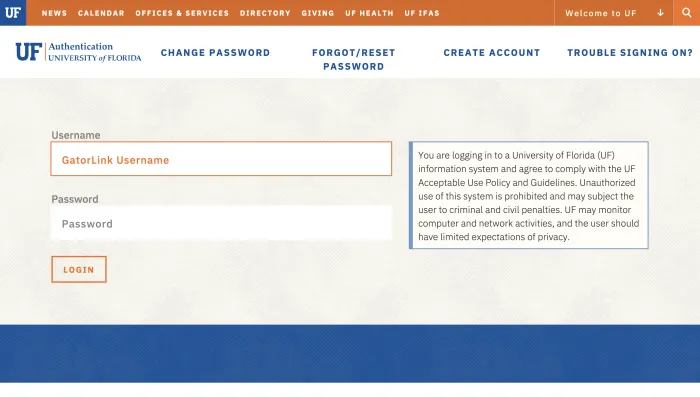
Basic Gator Mail Login Steps
- Go to UF’s official GatorMail website.
- Select “Log in to GatorMail.”
- Enter your GatorLink username.
- Enter your GatorLink password.
- Complete two-factor authentication if prompted.
- Open your UF email inbox.
Do not use random third-party pages that claim to offer Gator Mail login access. A real UF login should connect you to UF’s official sign-on system.
Official GatorMail Login Safety Note
Because “Gator Mail login” is a branded login keyword, some users may land on unofficial pages. Be careful before entering your UF credentials.
Use only trusted UF pages for:
- GatorMail login
- GatorLink password reset
- Email setup instructions
- UF Help Desk support
- Phishing reporting
- Email eligibility information
Gator Mail at a Glance
| Topic | Answer |
|---|---|
| Official name | GatorMail |
| Common search name | Gator Mail |
| University | University of Florida |
| Main users | Students, faculty, staff, eligible UF users |
| Login credentials | GatorLink username and password |
| Student email format | GatorLink username + @ufl.edu |
| Main features | Email, calendar, Global Address Book |
| Common access method | GatorMail website or Outlook |
| Mobile access | Outlook app or supported mail apps |
| Common problems | Login errors, MFA issues, Outlook sync, password changes |
| Alumni access | Limited after eligibility ends |
| Best use | Official UF communication |
Is Gator Mail the Same as GatorMail?
Yes. “Gator Mail” and “GatorMail” usually refer to the same UF email system.
People search for it in different ways:
- Gator Mail
- GatorMail
- UF Gator Mail
- UF GatorMail
- Gator Mail UF
- GatorMail login
- My Gator Mail
- Gator Mail login
The official name is commonly written as GatorMail, but many users type it as Gator Mail.
Who Can Use UF GatorMail?
GatorMail is available to eligible University of Florida users.
Common eligible users include:
- UF students
- UF faculty
- UF staff
- Student employees
- Other eligible UF-affiliated users
Students are generally eligible for a UF email account, and the mailbox is usually created automatically after eligibility is established. Some student employees may also receive a separate UF work email account depending on their role.
What Is a GatorLink Username?
A GatorLink username is the identity used to access many UF systems. It is also connected to the student’s UF email address.
For example:
| GatorLink Username | GatorMail Address |
|---|---|
| albert.gator | [email protected] |
| jane.student | [email protected] |
| ufuser123 | [email protected] |
Your GatorLink username and password are important because they are used for GatorMail and other UF services.
What Is GatorMail Used For?
GatorMail is used for official University of Florida communication.
Common uses include:
- Instructor emails
- Class updates
- Academic notices
- Administrative messages
- Financial aid communication
- Department emails
- Campus alerts
- Student organization communication
- Calendar invites
- Staff and faculty communication
- UF service notifications
Students should check GatorMail often because important deadlines and university notices may be sent there.
How to Set Up GatorMail in Outlook
Many UF users access GatorMail through Microsoft Outlook. Outlook is often the easiest option because it supports UF email, calendar, and Microsoft 365-style sign-in.
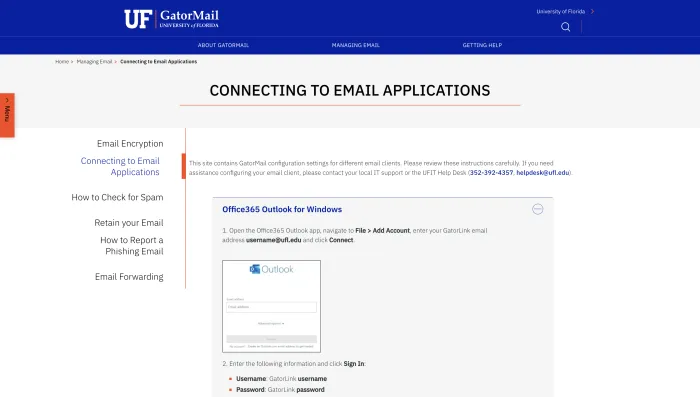
General Outlook Setup Steps
- Open Microsoft Outlook.
- Choose “Add Account.”
- Enter your UF email address.
- Sign in with your GatorLink username and password.
- Complete two-factor authentication if required.
- Let Outlook finish setup.
- Check whether email and calendar are syncing.
If you previously added the same account and it stopped working, remove the old account from Outlook and add it again.
How to Use GatorMail on iPhone
The easiest way to use GatorMail on iPhone is usually through the Microsoft Outlook app.
iPhone Setup Steps
- Download the Microsoft Outlook app.
- Open the app.
- Tap Add Account.
- Enter your UF email address.
- Sign in with your GatorLink credentials.
- Complete two-factor authentication.
- Allow Outlook to sync mail, calendar, and notifications.
You may also use the iOS Mail app if UF’s supported setup allows it, but Outlook is often easier for university email.
How to Use GatorMail on Android
Android users can also use the Outlook app for GatorMail.
Android Setup Steps
- Install the Microsoft Outlook app.
- Open the app.
- Add your UF email address.
- Sign in through the UF login screen.
- Complete two-factor authentication.
- Check whether your inbox loads.
If you use the Gmail app, make sure you add the account correctly as a Microsoft/Exchange-style account, not as a normal Gmail account.
Can You Use GatorMail in Gmail?
You may be able to access GatorMail through supported mail app settings, but GatorMail is not a personal Gmail account. For most users, the Outlook app or UF’s official webmail access is more reliable.
If GatorMail does not sync properly in the Gmail app, use Outlook instead.
GatorMail Login Problems and Fixes
GatorMail login issues are common because access depends on GatorLink credentials, two-factor authentication, browser sessions, account eligibility, and Microsoft/Outlook connection.
| Problem | Possible Cause | What to Try |
|---|---|---|
| Cannot log in | Wrong GatorLink password | Reset or verify your GatorLink password |
| Login page keeps looping | Browser session problem | Clear cache/cookies or use private browsing |
| MFA prompt not working | Two-factor issue | Check your device or authentication method |
| Outlook not syncing | Old account setup | Remove and re-add the account |
| Email not loading | Browser or app issue | Try another browser or Outlook app |
| Password changed but app fails | Old saved password | Update credentials or re-add account |
| Account not found | Eligibility issue | Confirm UF email eligibility |
| Alumni cannot access | Email access may have ended | Check UF deprovisioning rules |
Why GatorMail Login May Not Work
1. Wrong GatorLink Password
If your GatorLink password is wrong, expired, or recently changed, GatorMail may not open. Try logging in to another UF service to confirm whether your GatorLink credentials still work.
2. Two-Factor Authentication Problem
UF services may require two-factor authentication. If your phone is lost, changed, offline, or not receiving prompts, login may fail.
3. Browser Cache or Cookies
Old login sessions can cause loops or blank pages. Clearing cache, using another browser, or opening a private window may help.
4. Outlook Setup Issue
If Outlook was set up incorrectly or still has old saved credentials, GatorMail may stop syncing. Removing and re-adding the account often fixes the problem.
5. Account Eligibility Issue
If you are no longer eligible for UF email access, GatorMail may no longer be available. This is especially important for former students and alumni.
What to Do If GatorMail Is Not Loading
Try these steps:
- Refresh the page.
- Check your internet connection.
- Open GatorMail in another browser.
- Clear browser cookies and cache.
- Try private or incognito mode.
- Disable browser extensions.
- Try Outlook web access.
- Try the Outlook mobile app.
- Restart your device.
- Contact UFIT Help Desk if the problem continues.
If the inbox works in one browser but not another, the issue is likely browser-related.
What to Do If Outlook Does Not Sync GatorMail
If Outlook is not syncing your GatorMail:
- Restart Outlook.
- Check your internet connection.
- Confirm your GatorLink password works.
- Remove the UF account from Outlook.
- Add the account again.
- Complete two-factor authentication.
- Update Outlook to the latest version.
- Test GatorMail through webmail.
If webmail works but Outlook does not, the issue is likely with the Outlook setup.
GatorMail Password Issues
Your GatorMail access depends on your GatorLink password. If you change your GatorLink password, you may need to update saved credentials on your devices.
Password Tips
- Use a strong password.
- Do not reuse your UF password on personal sites.
- Do not share your password.
- Update saved passwords after a password change.
- Watch for fake login pages.
- Use UF’s official password reset process.
GatorMail and Two-Factor Authentication
Two-factor authentication protects your UF account by requiring an extra verification step. Even if someone knows your password, they should not be able to log in without the second factor.
Common two-factor issues include:
- Phone changed
- Phone lost
- Authentication app not working
- Push notification not received
- User accidentally denies prompt
- User receives a prompt they did not request
If you receive a login approval request that you did not start, do not approve it. That may mean someone else is trying to access your account.
GatorMail Safety: Spam, Phishing, and Suspicious Emails
GatorMail is used for official university communication, so users should be careful with suspicious messages. Phishing emails may pretend to be from UF, IT support, financial aid, payroll, professors, job recruiters, or account services.
Warning Signs of a Phishing Email
- It says your account will close immediately.
- It asks for your password.
- It asks you to verify your mailbox through a strange link.
- It asks for gift cards, money, or payment.
- It includes an unexpected attachment.
- The sender address looks suspicious.
- The message has poor grammar or unusual formatting.
- The link does not point to a trusted UF page.
- It asks you to approve a login you did not start.
When in doubt, do not click the link. Go directly to the official UF website or contact the sender through a trusted method.
How to Report Phishing in GatorMail
If you receive a suspicious email, report it through UF’s recommended phishing reporting process. UF-managed Outlook clients may include a Phish Alert button. If your mail client does not have that option, follow UF’s official security instructions for reporting suspicious email.
Reporting phishing helps protect other UF users from similar messages.
How to Reduce Spam in GatorMail
To reduce spam and suspicious emails:
- Mark spam messages correctly.
- Do not reply to suspicious emails.
- Do not click unknown links.
- Do not download unexpected attachments.
- Report phishing attempts.
- Keep your account secure.
- Do not share your GatorLink password.
- Use trusted devices when possible.
- Be careful with fake job offers and scholarship messages.
- Review your junk folder for incorrectly filtered mail.
Spam cannot always be removed completely, but careful behavior reduces risk.
GatorMail for Students
For students, GatorMail is one of the most important UF services. It may be used for:
- Class communication
- Instructor messages
- Academic notices
- Registration updates
- Financial aid messages
- Tuition notices
- Campus announcements
- Advising communication
- Student organization messages
- Appointment reminders
Students should check GatorMail regularly. Missing an official email may mean missing an important academic or administrative deadline.
GatorMail for Faculty and Staff
Faculty and staff use GatorMail for university communication, calendar scheduling, department messages, student communication, meetings, and administrative work.
Because faculty and staff email may include sensitive university information, users should follow UF email, security, retention, and data-handling policies.
GatorMail for Student Employees
Some student employees may receive a separate UF work email account in addition to their normal student GatorMail account.
If you have both, keep student communication and work communication separate. Use the right mailbox for the right purpose.
Do Alumni Keep GatorMail After Graduation?
Former students should not assume they can keep GatorMail forever.
UF states that students retain access to GatorMail and certain related services for 365 days after the end date of student affiliation. After that, former student accounts may be deprovisioned and content may be purged.
This means graduating students should move important personal accounts and save important emails before access ends.
What Alumni Should Do Before Losing GatorMail Access
If you are graduating, leaving UF, or unsure about future access, take these steps early:
- Create a personal professional email address.
- Update bank and financial accounts.
- Update job applications and resumes.
- Update LinkedIn and career profiles.
- Update social media recovery emails.
- Update subscriptions and shopping accounts.
- Save important attachments.
- Export important contacts.
- Move personal files from UF-linked services.
- Tell important contacts your new email.
- Keep checking GatorMail while you still have access.
- Review UF’s current email eligibility and deprovisioning rules.
Do not wait until the last week to move important information.
Can You Forward GatorMail to Another Email?
Email forwarding may be subject to UF policy. Since GatorMail can include official university communication, users should follow UF’s official guidance before forwarding messages to Gmail, Yahoo, Outlook, or another personal inbox.
For personal long-term accounts, it is better to update the account email directly instead of depending on forwarding.
GatorMail vs Personal Email
| Feature | GatorMail | Personal Email |
|---|---|---|
| Best for | UF official communication | Personal and long-term use |
| Address | Usually [email protected] | Gmail, Outlook, Yahoo, Proton, etc. |
| Login | GatorLink credentials | Provider credentials |
| Access duration | Depends on UF eligibility | Usually user-controlled |
| University notices | Yes | Not primary |
| Long-term job use | Not ideal | Better |
| Banking/recovery use | Not recommended | Better |
| Best purpose | Academic and university work | Personal identity and long-term accounts |
GatorMail is excellent for UF communication, but students should also maintain a personal email address for life after UF.
GatorMail vs ONE.UF
GatorMail and ONE.UF are different services.
| Service | Purpose |
|---|---|
| GatorMail | UF email and calendar |
| ONE.UF | Student records, registration, finances, grades, and academic services |
You may receive GatorMail messages about tasks in ONE.UF, but they are not the same platform.
GatorMail vs UF Canvas
GatorMail and Canvas also serve different purposes.
| Service | Purpose |
|---|---|
| GatorMail | Email communication |
| UF Canvas | Course materials, assignments, grades, and class tools |
Professors may use Canvas announcements, GatorMail, or both. Students should check both regularly.
GatorMail Review: Is It Good for UF Students and Staff?
GatorMail is not a public email product like Gmail or Yahoo Mail. It is a university email system designed for UF communication. For that purpose, it is useful and important.
GatorMail Review Summary
| Category | Rating |
|---|---|
| Official UF communication | 9/10 |
| Student usefulness | 9/10 |
| Outlook integration | 8/10 |
| Mobile access | 8/10 |
| Security | 8.5/10 |
| Ease of login | 7/10 |
| Alumni long-term value | 5/10 |
| Personal email replacement | 5/10 |
| Overall | 8/10 |
What GatorMail Does Well
1. Official UF Communication
GatorMail is the main inbox for university messages. It helps students, faculty, and staff receive official updates in one place.
2. GatorLink Integration
Because it uses GatorLink credentials, GatorMail connects with UF’s identity system and works with other university services.
3. Outlook and Calendar Support
GatorMail works well with Outlook-style email and calendar features, which helps with classes, meetings, advising, and work schedules.
4. Security Protection
UF provides security guidance, phishing reporting options, two-factor authentication, and spam/phishing protection tools.
5. Mobile Access
Students and staff can check email from mobile devices, making it easier to stay updated.
Where GatorMail Falls Short
1. Login Can Confuse New Students
New students may not know whether to use GatorMail, GatorLink, Outlook, ONE.UF, or Canvas.
2. MFA Issues Can Block Access
Two-factor authentication is important for security, but it can be frustrating if your phone is unavailable or authentication prompts fail.
3. Alumni Access Is Limited
Students should not treat GatorMail as a permanent personal email account. Access can end after eligibility changes.
4. Mobile Setup Can Be Confusing
Some users try to add GatorMail as a normal Gmail account instead of using the correct Outlook/Microsoft-style setup.
5. Not a Personal Email Replacement
GatorMail is best for UF communication. A separate personal email is better for banking, jobs, personal accounts, and long-term use.
User Sentiment: Common GatorMail Complaints
The SERP includes Reddit and help pages, which shows that many searches happen when users face access problems.
Common complaints include:
| Complaint | What It Usually Means |
|---|---|
| Login issues | GatorLink, password, or MFA problem |
| Outlook not working | App setup or saved credential issue |
| Alumni access confusion | User may no longer be eligible |
| Mobile setup difficulty | Wrong account type or app |
| Missing emails | Folder, junk, retention, or sync issue |
| Phishing concerns | Suspicious emails reaching inbox |
| Confusion with UF systems | Users mix up GatorMail, ONE.UF, Canvas, and GatorLink |
These issues do not mean GatorMail is bad. They show why users need a clear login and troubleshooting guide.
Common GatorMail Problems and Quick Fixes
| Problem | Quick Fix |
|---|---|
| Cannot log in | Verify GatorLink password |
| MFA not working | Check authentication device or method |
| Outlook keeps asking for password | Remove and re-add the account |
| Email not syncing on phone | Use Outlook app and sign in again |
| Login page loops | Clear cookies/cache |
| Missing emails | Check Junk, Archive, Deleted Items, and search |
| Spam messages | Mark spam or report phishing |
| Phishing email received | Use UF’s reporting method |
| Alumni cannot access | Check UF eligibility rules |
| Password changed | Update saved credentials |
| Email expected but not received | Check Junk and quarantine guidance |
Best Practices for Using GatorMail
To use GatorMail well:
- Check your inbox daily.
- Use it for official UF communication.
- Keep your inbox organized.
- Search before assuming an email is missing.
- Check Junk Email regularly.
- Report suspicious messages.
- Do not share your GatorLink password.
- Never approve unexpected MFA prompts.
- Use a personal email for long-term personal accounts.
- Save important messages before graduation.
Should You Use GatorMail for Job Applications?
You can use GatorMail for UF-related jobs, campus employment, internships connected to UF, and academic communication.
For long-term career use, a personal professional email is better because your UF email access may not last forever.
Use a personal email for:
- Resumes
- Job boards
- Employer accounts
- Portfolio websites
- Professional networking
- Long-term career communication
Should You Use GatorMail for Banking or Personal Accounts?
It is better not to use GatorMail as the main email for banking, taxes, social media, personal subscriptions, or account recovery.
Use a personal email address that you control long term.
GatorMail is excellent for UF communication, but personal accounts should not depend on university eligibility.
GatorMail Safety Checklist
Use this checklist to protect your account:
- Use a strong GatorLink password.
- Never share your password.
- Never approve an MFA prompt you did not request.
- Do not click suspicious links.
- Report phishing emails.
- Do not download unexpected attachments.
- Check sender addresses carefully.
- Use trusted devices when possible.
- Keep Outlook and mobile apps updated.
- Sign out from shared computers.
- Keep a personal email for non-UF accounts.
Final Verdict: Is GatorMail Useful?
Yes. GatorMail is very useful for University of Florida students, faculty, and staff because it is the official email system for UF communication. It provides email access, calendar tools, directory features, Outlook support, mobile access, and UF security protections.
However, GatorMail should not be treated as a permanent personal email account. Students should use it for UF communication, but they should also maintain a personal email address for job applications, banking, subscriptions, social accounts, and long-term recovery access.
If you are a current UF student or employee, check GatorMail regularly. If you are graduating or leaving UF, save important emails and move personal accounts before access changes.
FAQs About Gator Mail
Gator Mail, officially called GatorMail, is the University of Florida’s official email service for eligible students, faculty, staff, and related users.
Yes. “Gator Mail” is a common spaced version of GatorMail.
Use UF’s official GatorMail login page, enter your GatorLink username and password, and complete two-factor authentication if prompted.
For most students, it is your GatorLink username followed by @ufl.edu.
Eligible UF students, faculty, staff, student employees, and certain UF-affiliated users can use GatorMail.
GatorMail is available to eligible UF users as part of university services.
Yes. You can use GatorMail on mobile through Outlook or supported mobile mail apps.
Common reasons include wrong GatorLink password, two-factor authentication problems, browser cache issues, account eligibility changes, or temporary service problems.
This can happen if your password changed, Outlook saved old credentials, or the account needs to be re-added.
Student GatorMail access is generally limited after graduation or after student affiliation ends. Former students should check UF’s current eligibility and deprovisioning rules.
No. GatorMail is for email. ONE.UF is for student records, registration, finances, and academic services.
No. Canvas is for course materials, assignments, grades, and class tools. GatorMail is for email communication.
Forwarding may be subject to UF policy. Check UF’s official email guidance before forwarding university email to a personal inbox.
Use UF’s recommended phishing reporting method, such as the Phish Alert option in supported Outlook clients or the official UF reporting process.
You can use it for UF-related jobs, but a personal professional email is better for long-term career use.
No. It is better to use a personal email for banking and long-term recovery accounts because GatorMail access depends on UF eligibility.
Move personal accounts to a personal email, save important messages, export contacts, update job applications, and check UF’s email retention and eligibility rules.
They may be in Junk, Archive, Deleted Items, another folder, or affected by syncing/retention rules. Search all folders and check UF guidance if an expected message is missing.